For most 3D printing beginners, start with Tinkercad if you need the fastest path to a first print. Move to Autodesk Fusion, Onshape, or FreeCAD when dimensions and fit matter. Choose Blender when you need organic shapes like miniatures, masks, or cosplay parts. For advanced makers, SOLIDWORKS for Makers and Shapr3D add commercial-grade tooling, and OpenSCAD is the answer when you want designs defined by code.
The honest truth: there is no single "best CAD software for 3D printing." The right pick depends on the geometry you want to print, how often you'll revise it, and what device you're sitting at. This guide walks through that decision, explains the difference between CAD and slicer software, covers when to export STL vs 3MF, and ends with a checklist for going from model to printable file.
Quick Answer: Best CAD Software for 3D Printing by Use Case
| Your situation | Best-fit CAD tool | Why |
|---|---|---|
| I want a first print today | Tinkercad | Free, browser-based, designed as a beginner on-ramp |
| I need parts that fit existing hardware | Autodesk Fusion, Onshape, or FreeCAD | Dimensioned parametric workflows with strong 3D-print export |
| I want browser-native collaboration | Onshape | Real-time multi-user CAD in the browser (free docs are public) |
| I want free, open-source desktop CAD | FreeCAD | Open-source parametric modeler with STL/OBJ export |
| I'm modeling miniatures, creatures, or cosplay | Blender | Mesh-first sculpting plus a 3D Print Toolbox |
| I want premium maker-grade mechanical CAD | SOLIDWORKS for Makers or Shapr3D | Commercial-style tools at hobbyist pricing |
| I want code-defined, configurable parts | OpenSCAD | Script-driven solid 3D CAD |
| I just want to print something, not design it | Skip CAD; download a model | Use Printables or Thingiverse, then slice |
The Print-First CAD Ladder
Most "best CAD for 3D printing" articles rank tools as if every printed object is the same. They aren't. A toy-shaped browser app is perfect for a classroom name tag, but useless for a bracket that has to seat on an M3 screw. A parametric system that excels at brackets is awkward for a dragon bust. So instead of a top-ten ladder, think in stages:
- First-print confidence — Tinkercad
- Dimensioned parametric parts — Autodesk Fusion, Onshape, FreeCAD
- Organic mesh modeling — Blender
- Premium maker tools — SOLIDWORKS for Makers, Shapr3D
- Code-defined parametrics — OpenSCAD
You don't need to climb the whole ladder. Pick the stage that matches what you actually want to print.
CAD vs Slicer: They Are Not the Same Tool
The single biggest source of beginner confusion is treating CAD and slicer software as one thing. They aren't. As SOLIDWORKS for Makers puts it, "you design in CAD, then slice and print."
- CAD software creates or edits the 3D model itself. It produces a geometry file like STL, 3MF, OBJ, or STEP.
- Slicer software converts that model into the layer-by-layer instructions (G-code) your printer actually executes.
You almost always need both. A slicer cannot design a part for you; CAD cannot drive a printer. If you want the slicer side, see our best 3D printing software guide.
Stage 1: Tinkercad — Fastest Path to Your First Print
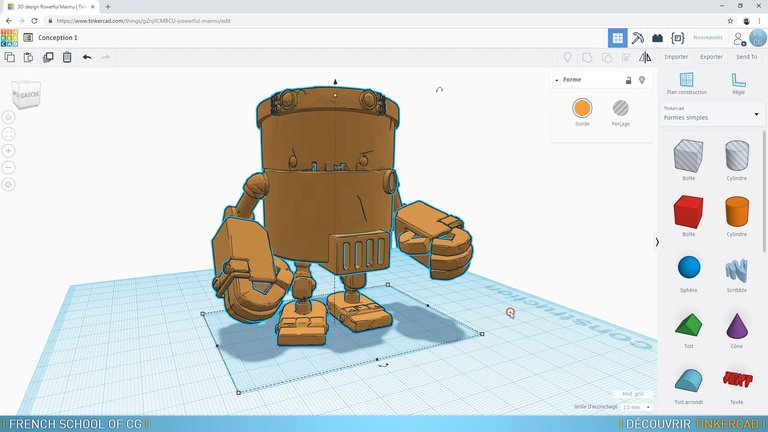
Tinkercad is a free web app built by Autodesk as an introduction to 3D design and 3D printing. It says it's trusted by over 100 million people, mostly through schools and beginner workflows. You drag primitives like cubes and cylinders, align and group them, cut holes, add text, and specify dimensions — and that's enough for a huge slice of beginner 3D printer designs.
Best for: name tags, keychains, organizer bins, school projects, simple replacements, and first prints.
Limits: It is not a parametric mechanical CAD tool. If your part has to mate precisely with another object and you expect to revise dimensions later, you'll outgrow it.
If you want another no-install starting point with local browser storage, try the free SketchForge 3D browser editor and export the result as STL or OBJ.
Stage 2: Dimensioned Parametric CAD — Fusion, Onshape, FreeCAD
Once "looks about right" stops being good enough, move up to a parametric tool. These let you change a dimension and have the rest of the model update around it.
Autodesk Fusion (Personal Use)
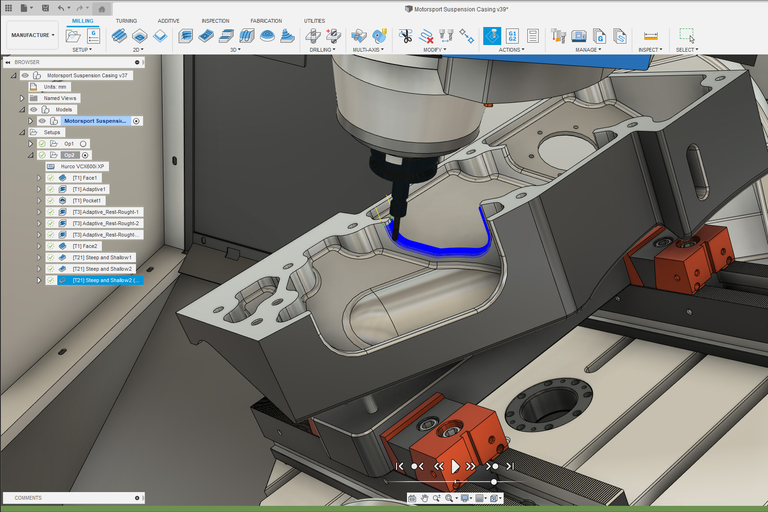
Autodesk Fusion is the mainstream hobbyist choice for dimensioned mechanical parts. Autodesk says over 4.6 million professionals use it. The Personal Use tier is free for 3 years for qualifying non-commercial users making less than $1,000/year from their projects. Fusion can export 3MF, STL, or OBJ directly from its 3D Print command.
Best for: brackets, enclosures, hinges, replacement parts, prototypes, and anything where fit matters.
Onshape
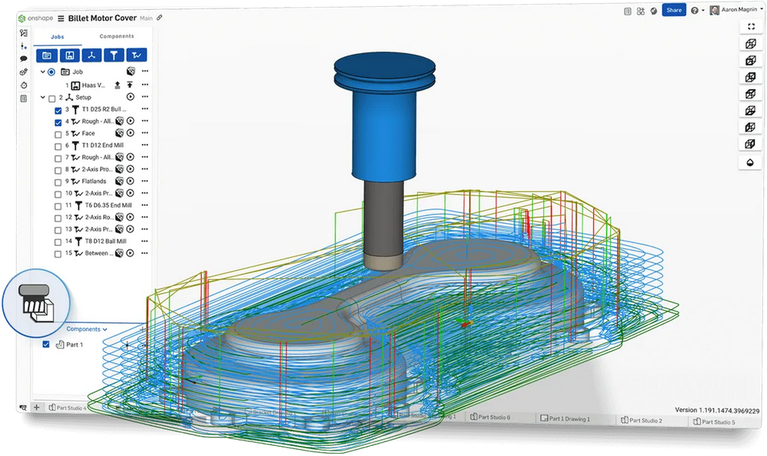
Onshape is fully browser-native, which makes it the best fit for Chromebooks, tablets, and locked-down school computers. The catch is honest and important: all Free plan documents are public. If you're learning, that's fine. If you're designing anything you don't want a stranger to copy, pay for a tier or pick a different tool.
Best for: browser collaboration, multi-device workflows, classroom use where privacy isn't a concern.
FreeCAD
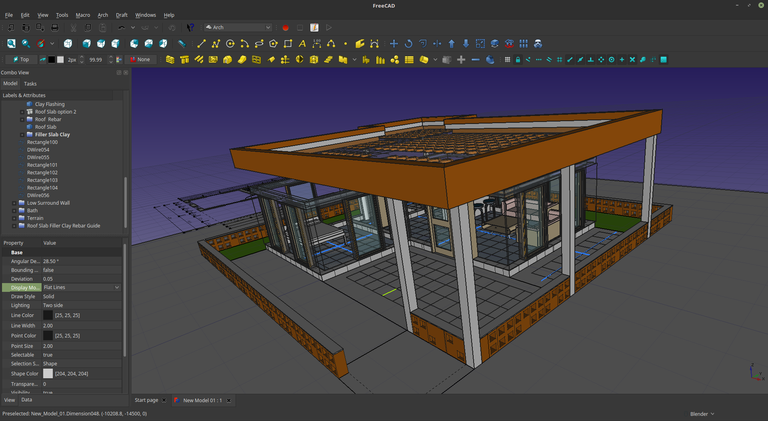
FreeCAD is the open-source parametric desktop alternative. It's a real parametric modeler — not a sculpting tool — and it can export to STL or OBJ for slicing. It is the strongest free CAD pick when you want fully local files, no account, and no commercial use restrictions. For a broader open-source roundup, see our free open source CAD software guide.
You can also launch the experimental FreeCAD Web editor to try parametric 3D CAD in a compatible browser before installing the desktop version.
Best for: privacy-conscious makers, Linux users, anyone who wants parametric CAD without licensing strings.
Stage 3: Blender — When Your Print Is Organic
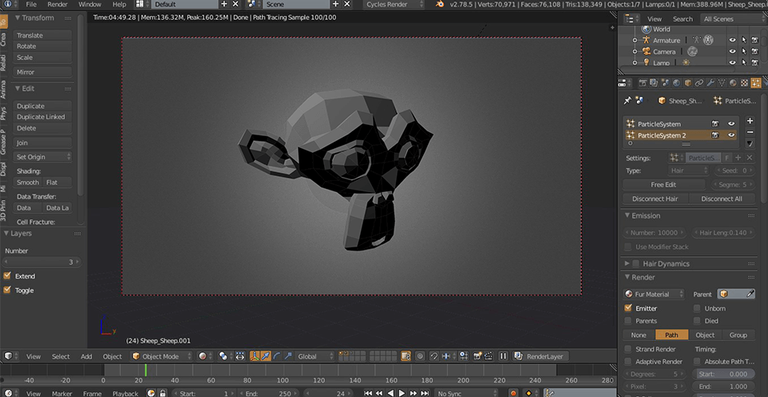
Engineering CAD treats a model as a history of features and dimensions. Mesh modeling treats it as a sculptable polygon surface. For miniatures, creatures, masks, terrain, and cosplay, the second approach is the right one.
Blender is a free, open-source 3D creation suite, and the 3D Print Toolbox add-on ships checks for the things slicers care about (non-manifold edges, thin walls) plus quick STL export.
Best for: figurines, busts, organic ornaments, terrain, anything sculpted rather than engineered.
Limits: Blender is not the right tool for a dimensioned bracket. Use parametric CAD for that.
Stage 4: Premium Maker Tools — SOLIDWORKS and Shapr3D
Two paid options are worth knowing about once you've outgrown free tiers.
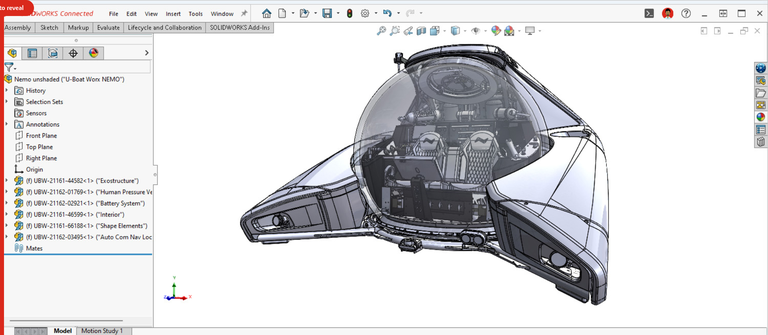
SOLIDWORKS for Makers is $48/year (or $15/month) and intended for users making under $2,000/year from their projects. Its 3D printing page calls out a genuinely useful workflow: you can divide large models into smaller printable sections and add alignment features like dowels and joints — handy for cosplay props and big prints.
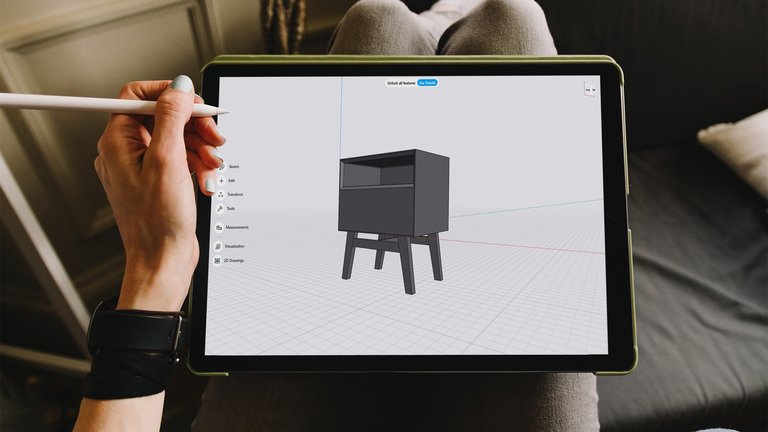
Shapr3D is the strongest tablet-first option. It runs on iPadOS, macOS, Windows, and visionOS. The Basic tier is free but capped at 2 projects with basic-resolution 3MF/STL export; Pro is $299/year and removes those limits.
Stage 5: OpenSCAD — Code-Defined Parts
OpenSCAD describes itself as software for creating solid 3D CAD objects, and explicitly says it is not an interactive modeler — you write code that defines geometry. This makes it a strong fit for parametric libraries (a single script that produces every variant of a part) and for designs you'll share as configurable templates. It is a niche first pick for beginners.
STL vs 3MF: Which File Should You Export?
"Printable STL" is still the dominant search phrase, but in modern workflows 3MF is usually the better handoff format.
| STL | 3MF | |
|---|---|---|
| What it stores | Surface triangles only | Mesh, plus colors, materials, multiple models, slicer settings, thumbnails |
| Supported by | Effectively everything | Over 100 applications per the 3MF Consortium |
| Prusa's stance | Accepted | Preferred file format |
| Best use | Max compatibility, single-part exports | Project handoff, multi-part scenes, color/material fidelity |
The 3MF Consortium notes that STL lacks material and property information and does not preserve full topology. If your slicer accepts it — PrusaSlicer imports STL, STEP, 3MF, OBJ, and AMF — prefer 3MF for projects with multiple parts or settings you want to keep with the model.
Rule of thumb: Export STL when a tool only accepts STL. Otherwise, export 3MF.
What "Printable" Actually Means
Exporting a file is not the same as printing it. Real-world failures usually trace back to a handful of issues. Formlabs' Jeremy Ortiz puts it directly: 3D printed parts "must be composed of watertight manifold volume parts."
Run through this checklist before you slice:
- Watertight and manifold. No holes, loose faces, unwelded edges, or self-intersections.
- Reasonable triangle resolution. 3D Systems notes simple parts may be only a few hundred KB; complex models often land in the 1–5 MB range. Too coarse = faceted prints; too fine = sluggish slicer.
- Correct orientation. Overhangs and weak axes change with how the part sits on the bed.
- Process-appropriate features. Tiny pegs and unsupported overhangs that work in resin can fail in FDM.
"I Don't Actually Need CAD" — When to Just Download a Model
Prusa's own guidance is that the easiest way to start is often to download a premade model in STL, OBJ, or 3MF. Sites like Printables and Thingiverse exist for exactly this.
If your goal is "make this thing exist," not "design this thing," skip CAD entirely. Open the downloaded file in your slicer and print, or use a 3D printing service if you want the part made without owning hardware.
How to Go from CAD Model to Printable File
- Model in your chosen CAD tool. Build the geometry as a closed solid (parametric) or a watertight mesh (Blender).
- Run a mesh/print check. Use your tool's repair or analysis features — Blender's 3D Print Toolbox, Fusion's mesh analysis, FreeCAD's
Manual:Preparing models for 3D printingchecks. - Export. Prefer 3MF; fall back to STL if your slicer requires it.
- Open the file in your slicer. Orient the part, set supports, choose layer height and infill.
- Slice and print.
That's it. Five steps from "blank workspace" to "printer running."
Pricing and Plan Limits to Know Before You Commit
| Tool | Tier | Cost | Key restriction |
|---|---|---|---|
| Tinkercad | Free | $0 | None for hobbyists |
| Autodesk Fusion | Personal Use | $0 | Non-commercial; users earning <$1,000/year; 3-year term |
| Onshape | Free | $0 | Non-commercial; all documents are public |
| FreeCAD | Open source | $0 | None |
| Blender | Open source | $0 | None |
| SOLIDWORKS for Makers | Maker | $48/yr or $15/mo | Personal use; users earning <$2,000/year |
| Shapr3D | Basic | $0 | Up to 2 projects; basic-resolution export |
| Shapr3D | Pro | $299/yr | None |
| OpenSCAD | Open source | $0 | None |
Plan terms change. Re-verify on the vendor's site before you commit.
Frequently Asked Questions
What is the easiest CAD software for 3D printing beginners? Tinkercad. It's free, web-based, and Autodesk explicitly positions it as a starter tool with alignment, grouping, holes, text, and dimensions.
Is Tinkercad good enough for 3D printing? Yes, for simple parts, school projects, and entry-level models. For dimension-critical mechanical parts, move to Fusion, Onshape, or FreeCAD.
Is Autodesk Fusion free for hobbyists? Yes, for qualifying non-commercial users. The Personal Use tier is free for 3 years for users making less than $1,000/year from qualifying projects.
Is Onshape free? Yes, but the Free plan is for non-commercial use and all documents on the free tier are public.
Is Blender a CAD tool for 3D printing? Not in the classic mechanical CAD sense, but it's a strong choice for mesh-based, organic, or sculpted prints, especially with the 3D Print Toolbox add-on.
Do I need CAD software if I just want to print something? No. Prusa recommends starting by downloading premade STL, OBJ, or 3MF models. Open them in your slicer and print.
What's the difference between CAD and a slicer? CAD creates or edits the 3D model. The slicer converts that model into the layered instructions your printer executes.
Should I export STL or 3MF? Prefer 3MF — it preserves more model and project information, and Prusa calls it the preferred format. Use STL only when a tool requires it.
What makes a model printable? A printable model is a watertight manifold solid with no holes, loose faces, or unwelded edges. Mesh quality and orientation also matter.
Can slicers open more than STL now? Yes. PrusaSlicer imports STL, STEP, 3MF, OBJ, and AMF.
Can I split large models into smaller prints inside CAD? Yes. SOLIDWORKS for Makers explicitly supports dividing large models into printable sections with alignment features like dowels and joints.
What should I use for code-defined, configurable designs? OpenSCAD. It is script-driven solid CAD rather than an interactive modeler, which makes it ideal for parametric libraries and configurable templates.